Your phone is the TV remote
Control Netflix, Prime Video and YouTube in Chrome on the laptop or mini PC connected to your TV — from the couch. Scan a QR code once. No sign-in.
Add to Chrome — freeWorks in Chrome on PC and Mac
You can't install it on a phone — open this page in Chrome on your computer.
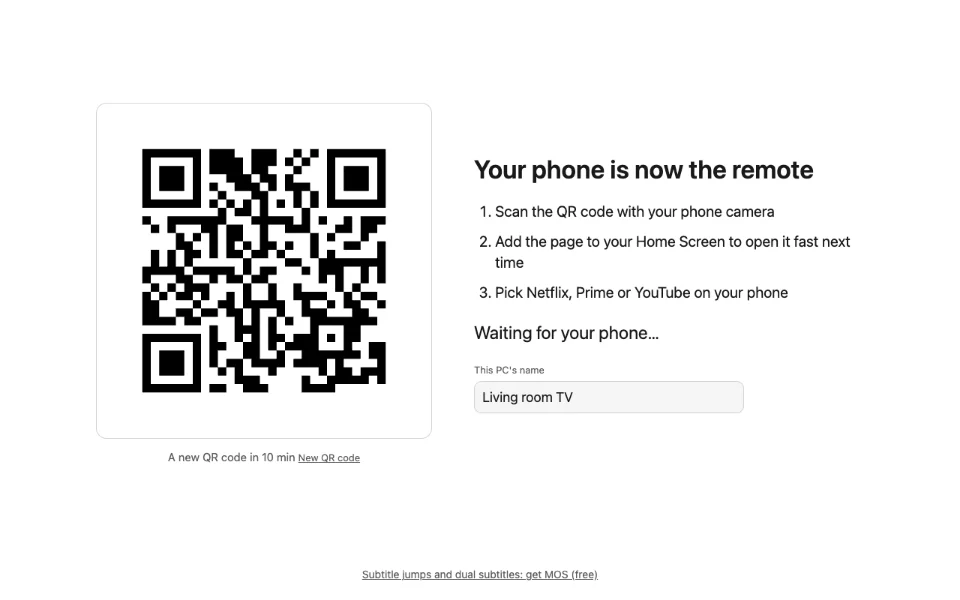
Three steps
- 1
Scan the QR code
Add MOS Remote and a QR code appears on your computer. Scan it with your phone camera.
- 2
Add to Home Screen
Next time, open the remote straight from your home screen.
- 3
Pick a service
Choose Netflix, Prime Video or YouTube and move with the arrows.
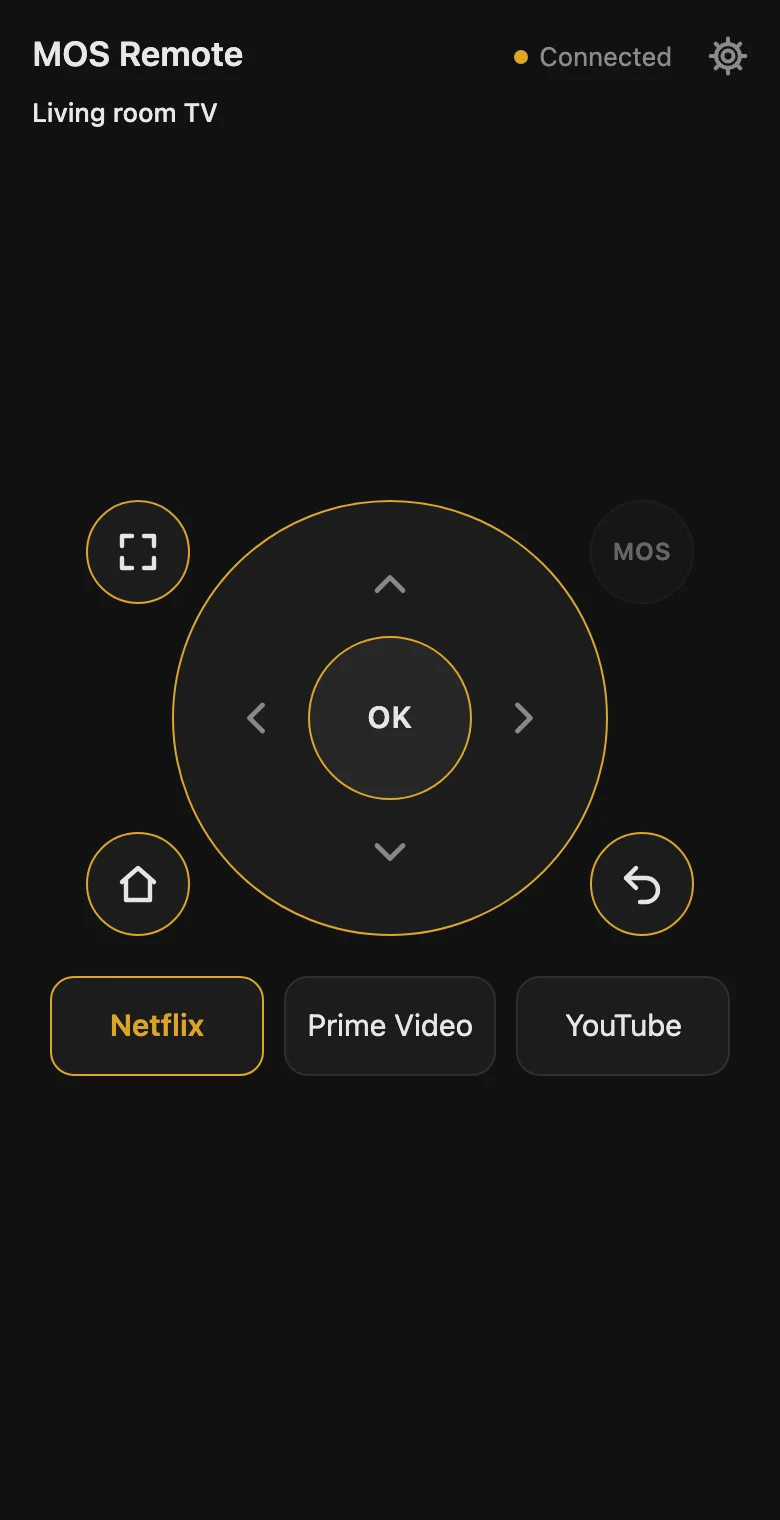
Like a smart TV
- Arrows and OK
- A gold highlight moves across titles, menus and buttons.
- Playback keys
- Play/pause, back and forward 10 seconds, skip intro, full screen.
- Search with your phone keyboard
- Type searches on your phone.
- YouTube too
- Search, Up next and Shorts.
- Easy to see from the couch
- Pick the highlight's thickness and color in ⚙ settings.
- The whole family
- Up to 10 phones per computer.
Works with: Netflix, Prime Video, YouTube
Questions
- Do I need to sign in?
- No. Scan the QR code on your computer once. No account, no Google sign-in.
- There's no sound.
- Chrome can block sound in a tab nobody has clicked yet. Click the computer screen once and try again.
- My phone doesn't vibrate.
- Phones don't vibrate in Do Not Disturb or Focus mode. Turn it off and try again.
- Can several phones use it?
- Yes. Up to 10 phones can connect to one computer.
- How do I disconnect?
- Click “Disconnect all phones” in the MOS Remote popup on your computer. Every phone is signed out, and QR codes made before that stop working.
- What data does it use?
- Your key presses go straight to your computer and are never stored. Details are in our privacy policy.
Even better with MOS
Add MOS (My Own Subtitles) and the remote's MOS keys turn on: jump between subtitle lines and open the dual-subtitle panel from the couch.